Steps
- Open My clubs, select your club and choose Add player in Club Office. A name or nickname is enough to start; add contact details when needed.
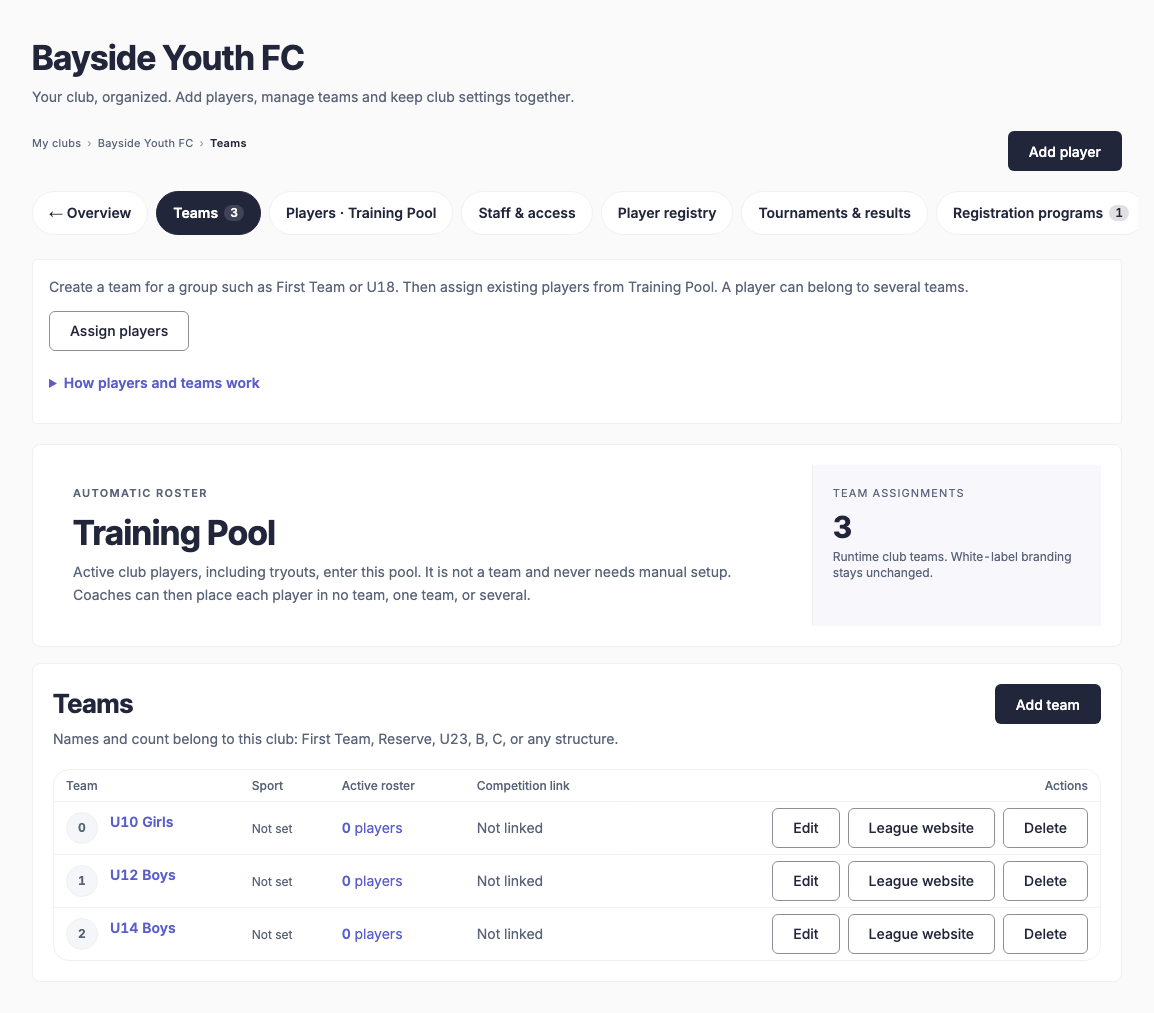
- Open Teams and create the groups you run, such as First Team or U18. Use names that parents, players and coaches can distinguish.
- Open Players · Training Pool and assign existing players to the right teams. A player can belong to more than one team; reuse the player record rather than creating a duplicate for each team.
- Use Player registry to review account links and invitations. Saving a player record does not create a sign-in or automatically send that person an invitation.
- When entering a competition, check its team and player registration separately. A club team, its competition entry and the squad selected for one match serve different purposes.
- Open a training or game for the team and check the intended players appear. If someone is missing, check their team assignment and that event's audience before adding another player record.
Club membership grants access. A player record identifies a participant. Team membership organizes players. A match squad selects who plays in that particular game.
More Club app guides
How do I sign in to my club's app?
Install your club's app and sign in with the same account on every device.How do I join my club with a code or invite link?
Open the invite link, or type the join code your club gave you.How do I see the schedule and answer Going or Can't go?
Answer from the Home tab, and change your answer while answers are open.How do I use club chat and turn on notifications?
Message your club, your teams or one person, and get alerts for new messages.Coaches: how do I create and edit a training?
Create one-off or weekly trainings, and choose who is invited and how they answer.Coaches: how do I set the lineup and record who played?
Pick the squad on the pitch, notify players, then confirm who played after the game.How do I enter a game result and goal scorers?
After kick-off, enter the score and add goals and cards.Where do I see my stats, appearances and the club's top scorers?
Team tables and leaderboards on the Stats tab, and your own record on your player page.How do I switch between light, dark and my club's look?
Choose how the app looks on your own phone, whatever your club's default.Club admins: how do I set our crest, colours and links?
Brand the app with your crest and colours, and check the result in a live preview before saving.How do I register for a season, pay dues or get tickets?
Register in the app and pay securely in your browser.Club admins: how do I manage members, teams and staff?
Club Office in Profile holds players, teams, staff, codes and payments.How do I create a club, academy or community organization?
Use the console's club setup wizard, then manage the same organization from Club Office.How do I prepare a club crest and add it to EasyChamp?
Upload your own image, preview it at small size and carry your club identity into the app.How does my club in the console connect to the mobile app?
Use the same club and account, then check membership, roles and the selected team.How do club teams, imported results and match details stay connected?
Check the linked competition and player identities before editing or importing data.How do I connect my club's payments and bank payouts?
Confirm the club owner and receiving business, complete Stripe setup and check both payment and payout readiness.How do coaches see who is going, unavailable or still unanswered?
Read the event's responses before selecting your squad or planning training.How do I prepare my team with a lineup and tactical board?
Check availability, choose the match squad and share a clear plan with players.How do I plan training around the players and time available?
Start from a calendar session, review attendance and build a practical training plan.Can I connect a GPS tracker or watch and see distance covered?
Understand which stats come from match records and what to check before relying on wearable data.