Club Commerce / Pilot field guide
Tickets for your home crowd.
Your club sets the offer. Fans check out through Stripe. Live payments go to the club’s connected account; test orders move no real money.
A focused pilot for Dade County FC and EasyChamp FC. Start with owner setup, then publish the games you want to sell.
Sign in to check your club’s pilot access.
Owner setup
From the right owner to the first offer.
Check the club’s pilot access, its receiving business and Commerce’s readiness for the payment mode shown. Each has its own confirmation.
Before you share
- The assigned owner is correct.
- The receiving Stripe business is correct.
- Commerce confirms readiness for the displayed mode.
- The right event offer is explicitly published.
- 01
Choose the right club
Open Commerce from your club office. Check that you are in Dade County FC or EasyChamp FC and that pilot access is enabled.
Staff can manage the workspace; the assigned owner controls Stripe.
- 02
Connect the club’s Stripe account
The business owner opens Payments, checks the owner name and continues to Stripe. Complete the business and bank steps on Stripe’s own pages.
Connect the account that should actually receive this club’s money.
- 03
Confirm the business and payment mode
Check the receiving business and account ending in Payments. Return to Commerce, refresh Ready for matchday? and confirm its payment-readiness step is complete for the mode shown.
Live account setup alone does not prove test checkout is ready. Test mode creates no real payment or payout.
- 04
Publish one home-game offer
Start from the $5 default or set an event-specific price. Choose a scheduled event, confirm that it is a home game, set capacity and publish its offer.
Saving defaults alone never puts a game on sale.
- 05
Add a code. Share the ticket page.
Create a club promotion if needed, with an expiry and redemption cap. Fans can buy as guests and save their private receipt link. Use Orders and Admission to follow confirmed tickets and scan them at the gate.
A pending checkout stays pending until payment is verified. Share test offers only with your pilot testers.
Inside the pilot
See what you’re checking.
Actual pilot account setup, labelled by payment environment. This connected-account view confirms the receiving business; Commerce separately confirms ticket readiness. Open the capture to inspect the details.
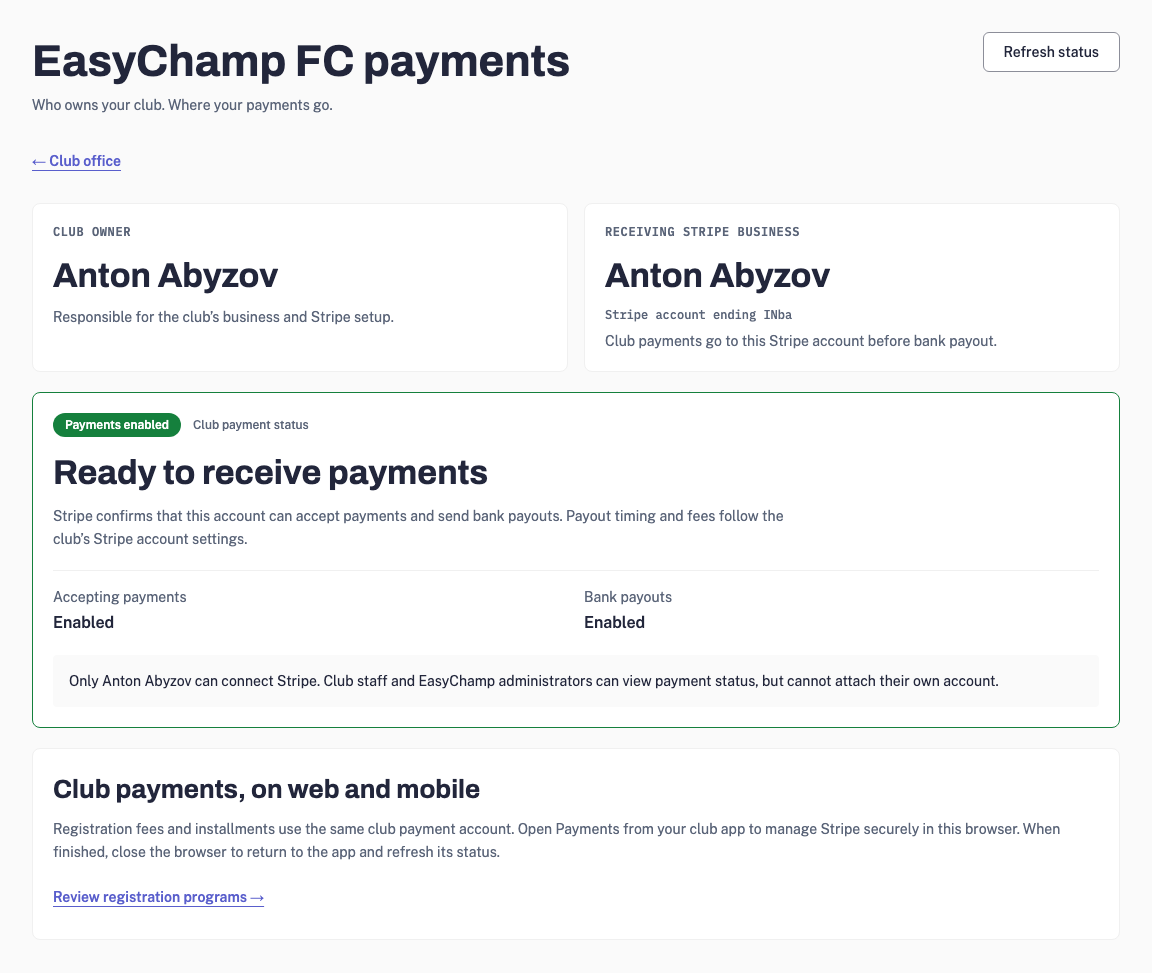
Production / Live account setup
Setup FAQ
The details that matter before matchday.
Connection, pricing, promotions, receipts and the gate. Share this section with your club’s owner or matchday staff.
Permanent link to this FAQWhich clubs can use the pilot?
The first pilot clubs are Dade County FC and EasyChamp FC. Sign in to the club’s Commerce workspace to check access. Other clubs can discuss joining the pilot with EasyChamp; creating a club does not automatically enable ticket sales.
Who connects Stripe, and where do bank details go?
The club’s assigned business owner opens Payments and chooses Connect Stripe. Use the Stripe account that should receive this club’s money. Stripe hosts the business verification and bank-account steps. Club staff can check status, but only the assigned owner can connect the receiving account. Do not send banking details to EasyChamp support.
How do I know setup is complete?
In Payments, check the owner’s name, receiving Stripe business and account ending. Then return to Commerce and refresh its Ready for matchday? checklist. It must confirm readiness for the mode shown: Stripe payments and payouts ready for Live payments, or Stripe test checkout ready for Test mode · no real payments. A connected live account alone does not confirm readiness for test checkout. Resolve any incomplete setup or recovery notice, confirm pilot access and explicitly publish an offer. A test order never represents a real payment or bank payout.
Does every home game automatically become a $5 ticket?
No. USD $5 is the starting home-ticket default. A manager chooses a scheduled club event, marks it as a home game, sets capacity and explicitly publishes its ticket offer. Change the club default for future offers or set a different price for an individual event before orders exist. A fixture title is not used to guess whether a game is at home.
Can I change a price after fans have ordered?
An offer’s price and event are fixed once orders exist, so existing buyers keep the terms they accepted. Use new event inventory for a different price. Capacity cannot be reduced below reserved or sold tickets. Pausing sales closes unpaid checkout links; confirmed orders remain in the club’s history.
How do promotion codes, expiry and redemption limits work?
A manager creates a percentage-off code in Commerce, from 1% to 100%, with an optional future expiry and maximum number of redemptions. Codes use 4–32 letters, digits or hyphens and are stored in uppercase. They apply to this club’s event-ticket product on its receiving Stripe account. Fans enter the code before opening Checkout; a code from another club or an expired or exhausted code cannot discount the order. These pilot codes do not change registration fees or existing registration installment schedules.
Does a 100% promotion create a valid ticket?
Yes, after Stripe confirms the zero-total checkout. The order becomes complimentary and receives a ticket for each place. An unconfirmed browser return, pending checkout or failed payment does not create valid tickets.
Can fans buy as guests and keep their tickets?
Yes. Fans can buy as guests from the club’s published ticket page and return from Stripe to a private order receipt. That page shows verified payment status and tickets after payment or complimentary checkout is confirmed. Use Copy private receipt link to keep access on another device, or return in the browser used to order. Anyone with that private link can view the order and its admission codes, so keep it private. Stripe’s own email receipts follow the club’s Stripe settings.
How do staff scan a ticket at the gate?
A club manager opens Commerce → Admission and chooses Scan with camera. Allow camera access, then point the phone’s rear camera at the fan’s ticket QR. A readable code is checked and admitted once, then the camera closes. If the camera is unavailable or access is denied, close it and paste the ticket code, or use a scanner that enters text. Choose Check and admit. Wait for the recorded result: repeated scans show already admitted, and void or foreign-club tickets do not admit anyone.
Who receives the payment, and when does it reach the bank?
For Live payments, the payment belongs to the club owner’s connected Stripe account shown in Payments. Stripe’s fees, account requirements and payout schedule determine the bank payout. Test mode creates no real payment or bank payout. EasyChamp does not substitute a staff member’s or temporary custodian’s account. Review the receiving business and payment mode before publishing or sharing a ticket offer.
What happens to tickets after a refund?
Managers can refund a full order through Commerce on the original receiving account. A refunded order keeps its receipt and history, and its tickets become void. A complimentary order is voided without a money refund. A partial refund recorded by Stripe also voids admission until the club resolves it; it does not leave every ticket usable.
What if the owner leaves or deletes their account?
The club is preserved for ownership recovery. New sales pause, unpaid checkout links are closed, and a verified new business owner must be assigned before selling resumes. Existing payments and refunds stay linked to their original receiving account. The temporary platform custodian never becomes the club’s payout recipient.
Can fans pay on their phones or at the gate?
Yes, once the club has completed Stripe setup and published a ticket offer. Share that offer’s public link, or print a QR code pointing to it. Fans open the page on their own phones and complete hosted Stripe Checkout. Staff then scan the issued ticket in Commerce → Admission. The purchase QR opens checkout; the private ticket QR confirms admission. Scanning a ticket does not charge a card.
Can a fan tap a card or wallet against a staff member’s phone?
Stripe supports Tap to Pay on compatible iPhones and Android phones, but native Tap to Pay is not yet available inside EasyChamp Club. A browser redirect cannot turn the phone into a contactless card reader. Eligible merchants can use the separate Stripe Dashboard mobile app for in-person contactless payments. Those standalone charges do not create EasyChamp tickets or reserve event capacity; keep their gate records separate. Integrated Tap to Pay needs a further app release and device verification.
Can our separate club website sell the same tickets?
Yes. Link its ticket buttons to the club’s public EasyChamp ticket page, or to a specific published offer. Fans, staff and the app then use the same prices, capacity, promotion codes and order history. Publish and manage the offer in Commerce first. An independent Stripe Payment Link or Square checkout does not automatically create an EasyChamp admission ticket. Existing registration or shop payments can keep their own checkout while ticket sales use the shared offer.
Is Commerce a new subscription, and do I need an app update?
Commerce needs no new EasyChamp subscription today. EasyChamp charges no transaction fee on club sales. Stripe’s processing fees still apply. A monthly Commerce add-on, a subscription, is planned for later. Existing Club App plans are separate. Start the pilot in the web workspace. App download availability and in-app Commerce shortcuts are separate from this browser workflow.
Check your club. Start with one game.
Use the web workspace for this pilot. For a new club or a branded app, explore the separate Club App setup and launch options.